01 / Start here
Your first tournament
- Build your roster. Open Players and add players, or import a CSV.
- Create the event. From Home, choose New Tournament. Set the buy-in, starting chips, blinds and entry rules.
- Register and seat. Add players in Registration. In Floor, create tables and use automatic or manual seating.
- Start the clock. Check the first level, then start. Dashboard is your overview; the player display is the room’s view.
- Run the event. Record eliminations and eligible purchases, update stacks, and preview balancing moves.
- Review the finish. Check standings and payouts before confirming. Export results and back up your records.
02 / Your regulars
The player library
Players is your reusable roster across tournaments. Store names and optional player details, then register existing players without recreating them each night. Player profiles and statistics help you review their recorded tournament history.
Ratings, skill tiers and affiliations can inform seating and balancing. Keep them consistent if you intend to use those factors. Contact details and notes are optional—only store information you actually need.
Player versus entry: a player is a person in your library. An entry is one attempt in one tournament. Re-entry creates another attempt for the same person; it does not create a duplicate player.
03 / Build the night
Setup & templates
Create an event with a name, buy-in and starting stack. Configure the blind schedule with small blind, big blind, ante and level duration, including breaks. Review the entire schedule before starting.
Use Templates to manage reusable blind schedules, then review the new event’s settings. A blind template is a starting point—not confirmation that this week’s entry and finish rules are correct.
04 / Set expectations
Entry rules & cutoffs
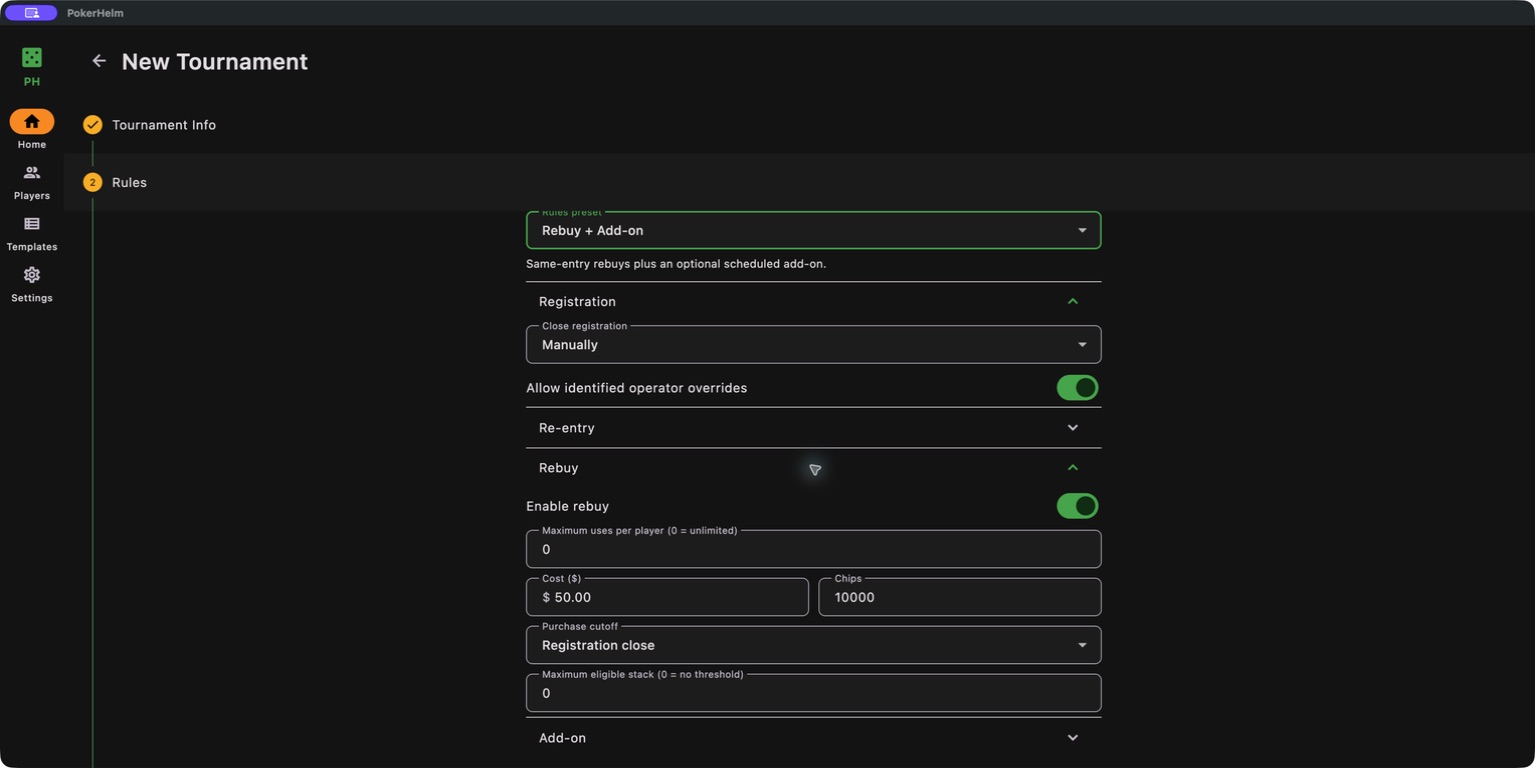
The rules editor brings registration, re-entry, rebuy, add-on and finish policies together. Start with a preset and review each enabled option.
- Registration
- Choose manual closing, a specified level, elapsed time, or no automatic close. Level 1 means the first level. Identified operator overrides are a separate setting.
- Re-entry
- Enable new attempts after elimination. Set the cost, chips, maximum uses per player and purchase cutoff.
- Rebuy
- Add chips to an existing entry. Set cost, chips, maximum uses and cutoff; an eligible-stack threshold can restrict who qualifies. A threshold of 0 means no stack threshold.
- Add-on
- Enable extra chips with a configured cost, per-player limit, and opening/closing levels.
- Finish & recovery
- Choose the default finish mode and whether result corrections or tournament reopening are allowed.
05 / At the desk
Registration, rebuys & add-ons
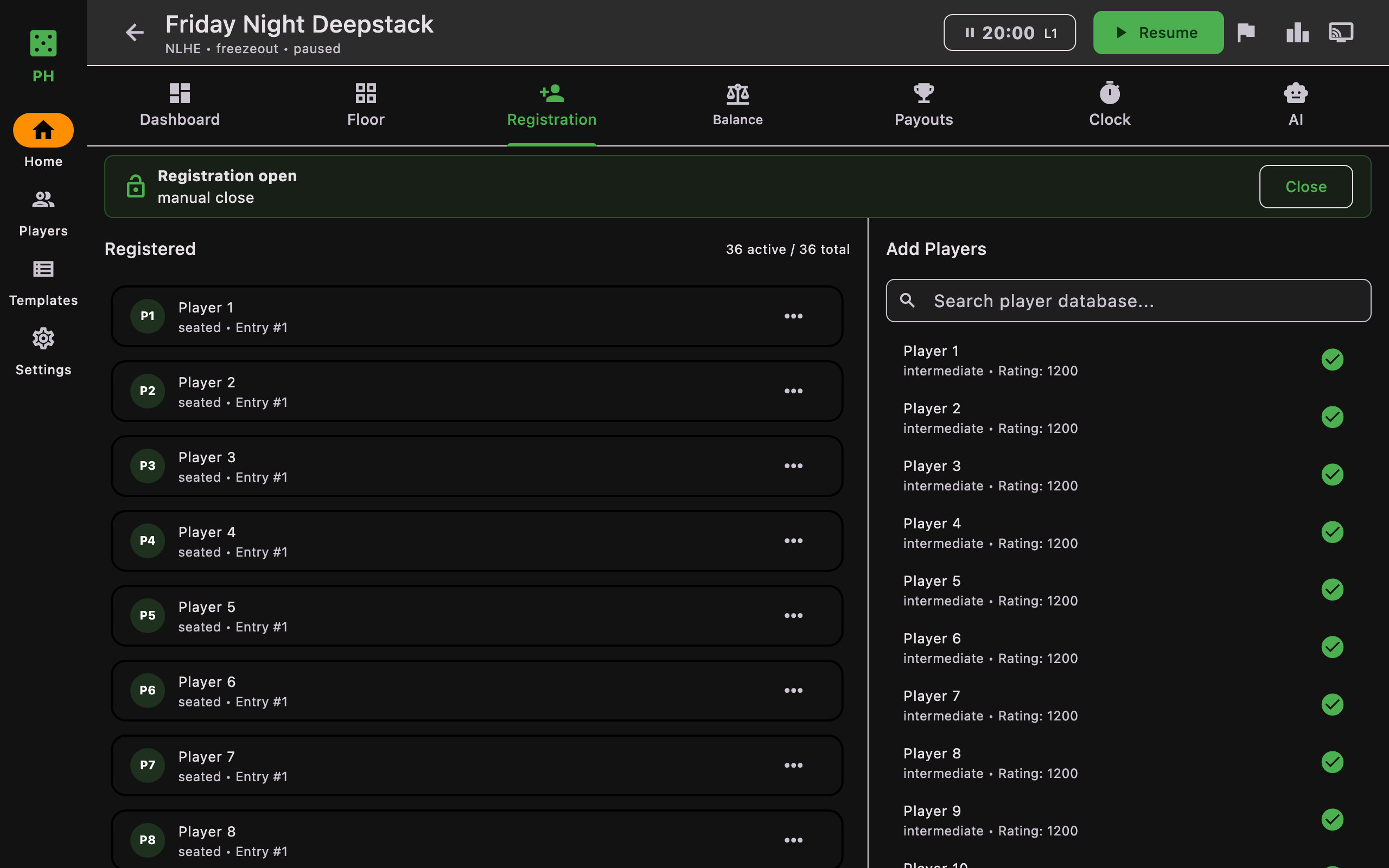
In the tournament’s Registration tab, search your player library and add entrants. Check registration status before admitting late arrivals. Record each rebuy, re-entry or add-on through the appropriate entry action so chips and tournament accounting stay aligned.
- Check the player and current entry.
- Choose the intended purchase action—not a new player record.
- Review eligibility, cost and chips against the event rules.
- Confirm and check the updated entry, stack and prize pool.
Use entry actions to record eliminations and update seated players’ chip counts. Floor also provides table-level chip-count updates. Keep counts current before balancing or a chip-count finish.
06 / Make room
Tables & seating
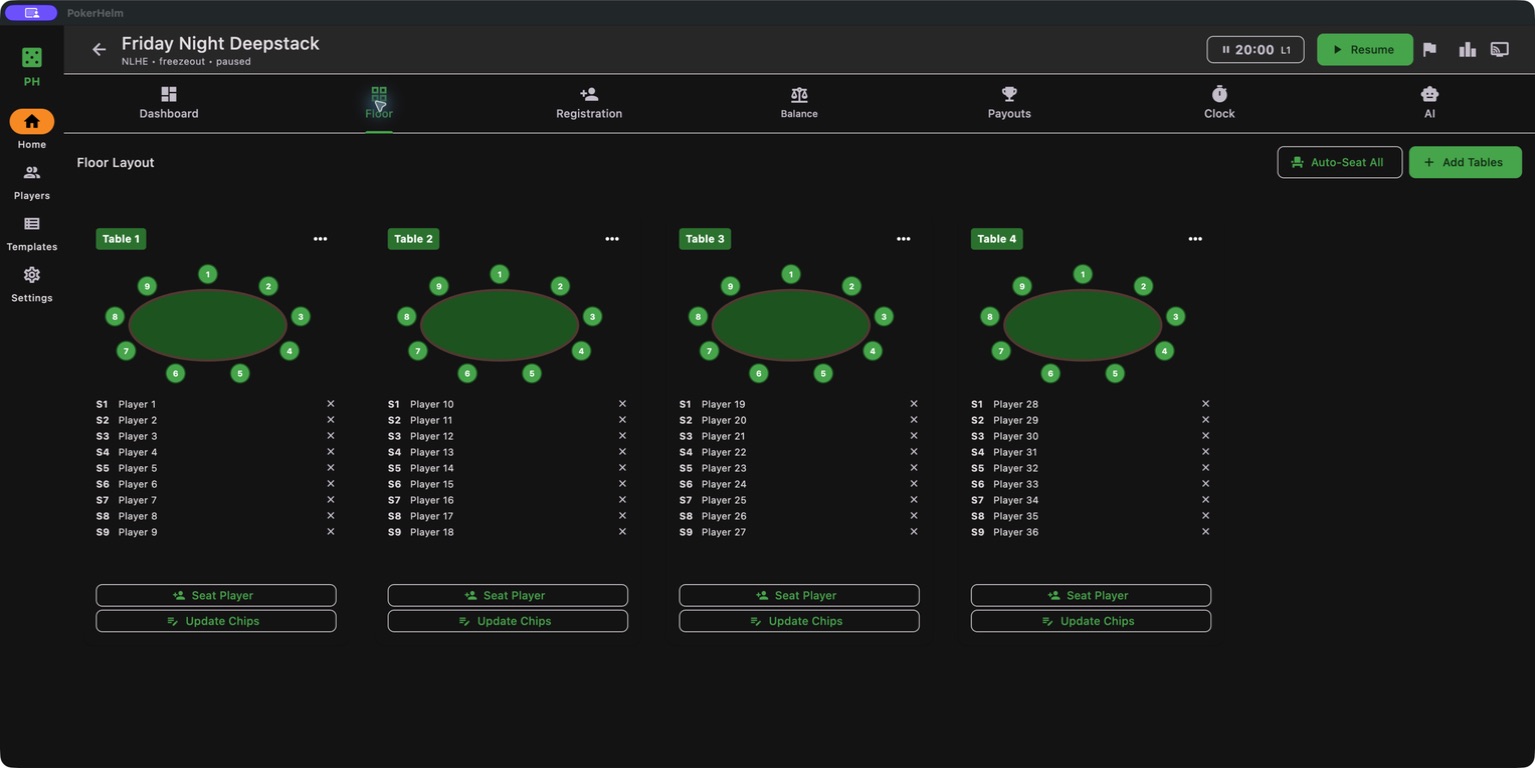
Floor is the table map. Add tables, choose available seats, and seat registered players manually or with Auto-Seat All. Review who is seated and who is waiting before starting.
Use table and player controls to manage seats and chip counts. When it is time to close a table, choose Break Table from its menu, review the proposed destination seats, then confirm or cancel. Ensure the remaining tables have room.
For large events, rehearse your expected table and player count on the computer you will use. More tables are not a guarantee of unlimited hardware capacity.
07 / Keep it fair
Balancing & operation history
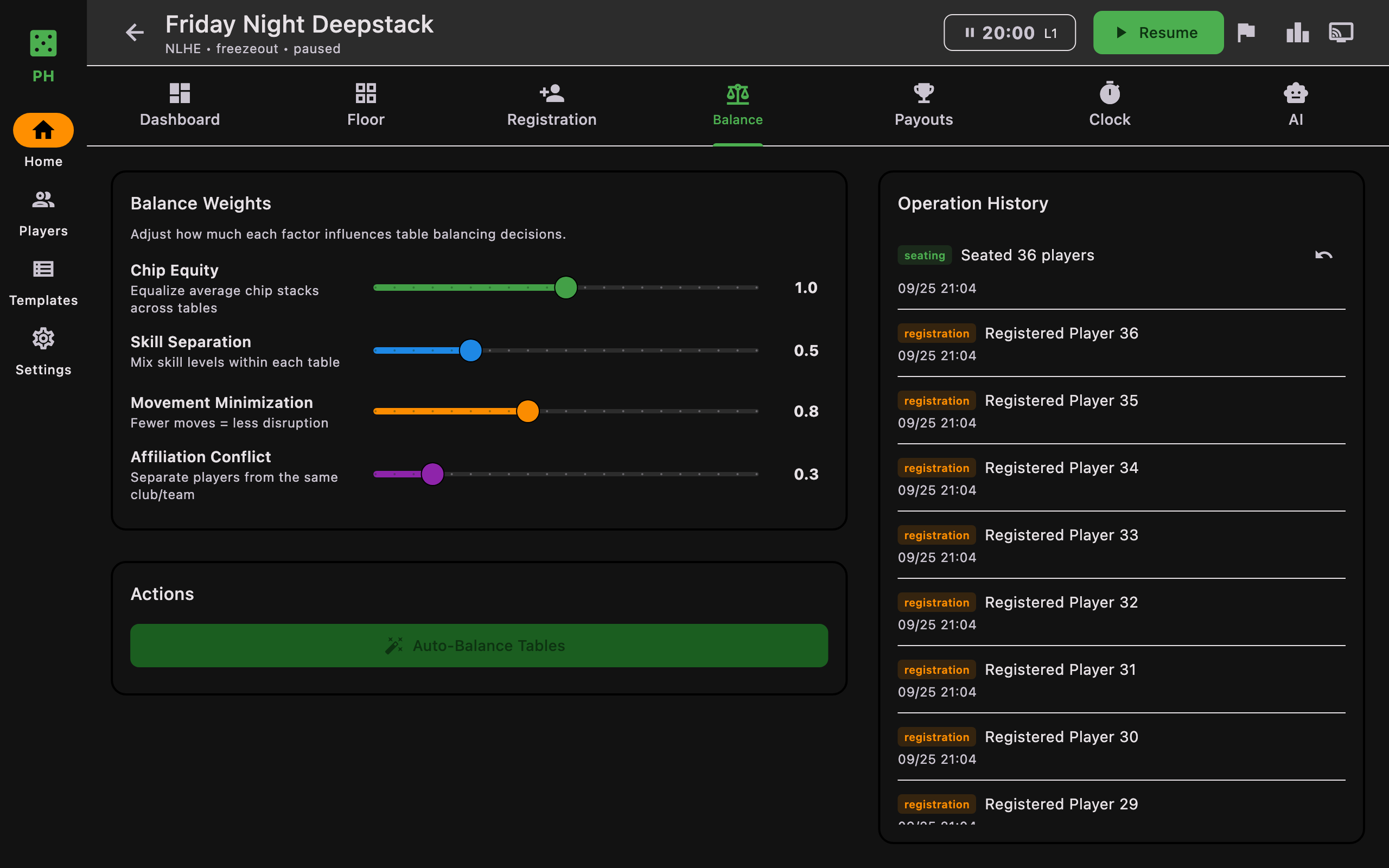
The Balance tab proposes moves between tables. Adjust the relative importance of chip equity, skill separation, minimizing player movement and affiliation conflicts. These are competing preferences; inspect the proposed plan rather than assuming every factor can be optimized at once.
- Update seats, eliminations and stacks.
- Choose balancing weights and generate a plan.
- Review the source table, destination and affected players.
- Execute the plan when ready, or cancel without applying it.
Operation History records actions such as seating, balancing, breaking tables and eliminations. Set an operator identity in Settings → Operations to make records easier to interpret.
Undo an elimination: use the brief Undo notification or the eligible action in Operation History. Recovery can be blocked if the original seat is occupied or the player has since re-entered. Check the recorded history instead of adding a duplicate entry to work around a mistake.
08 / Keep the pace
Clock & director dashboard
Dashboard brings together the current clock and blinds, remaining players, tables and prize pool. Use the director’s Start/Pause controls to manage play. The Clock tab provides a dedicated view of the schedule and timing.
Pause for an unexpected interruption. Review the current and next levels before manually advancing or returning to a level; a level change can also affect level-based purchase eligibility.
Keep the director interface with the organizer. Use the separate player display when the room needs a readable clock without administrative controls.
09 / For the room
Player display
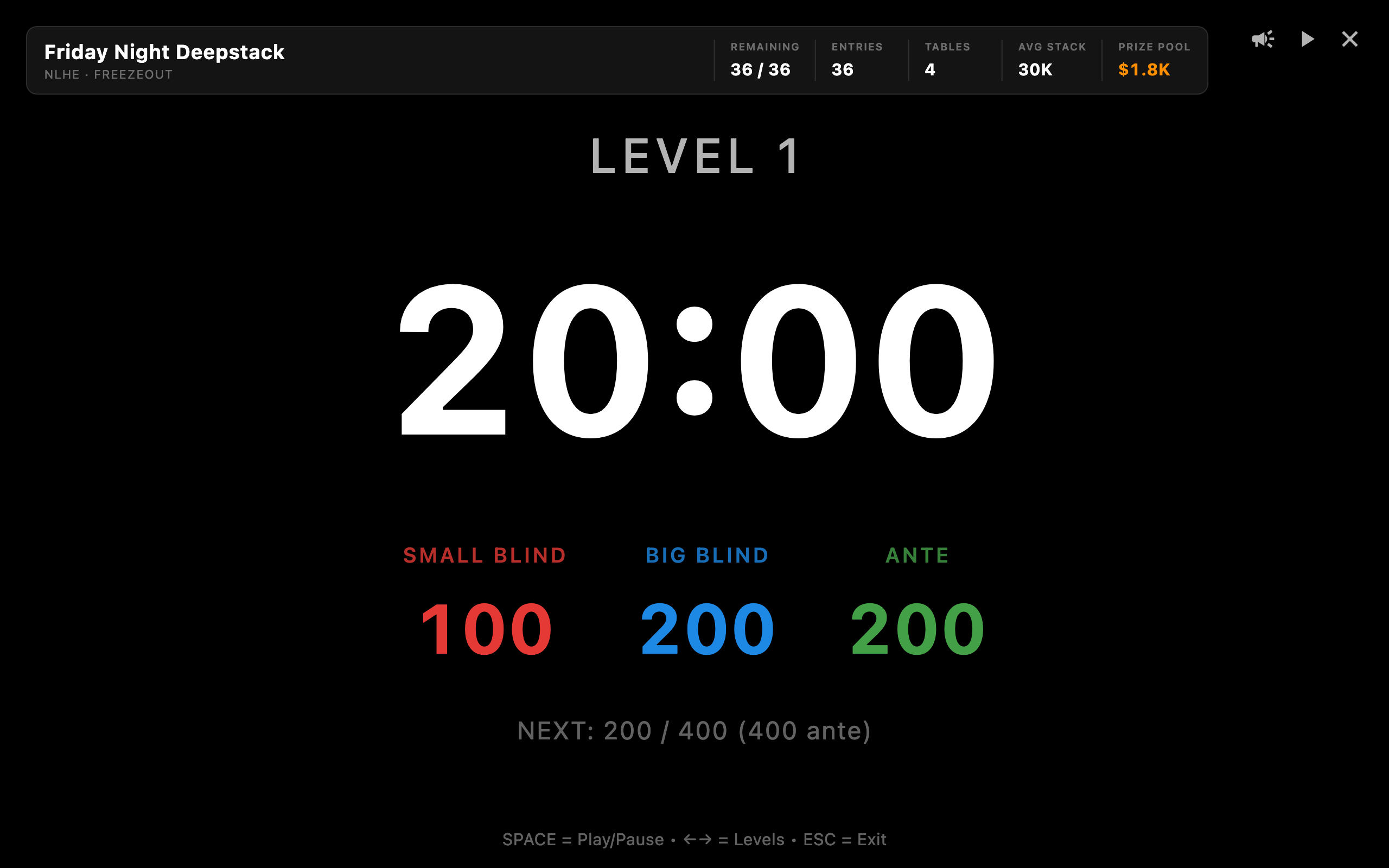
Select the TV control, Open Player Display, from the tournament director. This presentation view emphasizes tournament timing and information for players. Use your computer’s screen-sharing or display arrangement to show the appropriate view on a connected screen.
Display shortcuts: Space toggles play/pause, arrow keys change levels, and Esc exits. These controls affect the event—keep keyboard access with the organizer.
10 / The prize pool
Payout templates & ICM
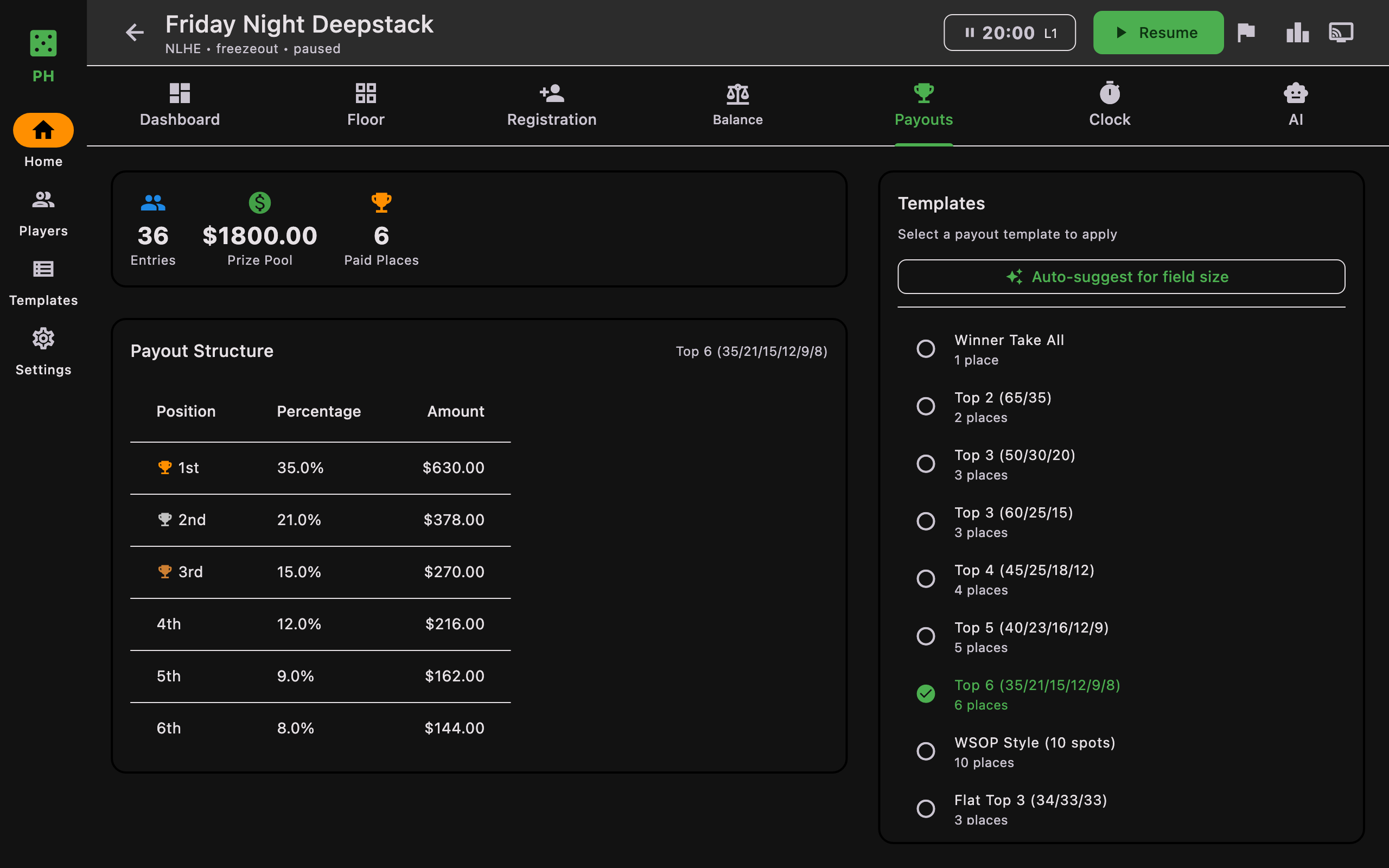
Open Payouts to see entries, prize pool and paid places. Choose a payout template to populate finishing positions, percentages and amounts. Available options include winner-take-all, top-two through top-six structures, a ten-place structure and a flatter top-three split.
Use the suggested structure as a starting point, then check the selected template and amounts against the rules announced to players. Recorded eligible purchases feed tournament accounting; recording a purchase is not proof that you collected payment.
11 / Close it properly
Deals, standings & results
Select Finish Tournament from the director and choose the appropriate finish method:
- Sole survivor
- Finish after the field has played down to one remaining player.
- Chip count
- Use the recorded stacks to determine the finish. Update and verify counts first.
- Manual deal
- Review the proposed standings and assign negotiated payouts. Agree the amounts with the players before recording them.
Inspect the finish preview, reconcile standings and payouts, then confirm. Confirmation saves the results and stops the tournament; opening the preview alone does not finalize it.
Open Results to inspect the recorded finish and export it. Corrections and reopening depend on the event’s recovery settings. Treat reopening as a deliberate administrative action, not the routine way to change a payout.
12 / Your records
CSV, exports & backups
In Settings, open Export/Import/Backup. Choose the operation you need:
- Export Players CSV
- Create a portable roster. An export is also a useful reference for the importer’s column names.
- Import Players CSV
- Select a roster CSV and review the import. Keep a backup before importing a large or unfamiliar file.
- Export Results CSV
- Export a tournament’s saved results through its results/export flow. This is not a full database backup.
- Backup Database
- Save a copy of the app database to a location you control. Keep a second copy away from the event computer.
- Restore Database
- Select a backup and review the confirmation. Restoration replaces the current database state; PokerHelm first creates a safety copy.
Core tournament records live locally. Do not assume a cloud account is silently backing them up or synchronizing multiple computers.
13 / Optional assistance
AI—with your permission
The AI tab is an optional, read-only assistant. Core tournament management works without it. AI requires internet access and your own Anthropic API key; provider charges may apply.
- Configure the key in Settings, choosing the available session or secure-storage option.
- Open the tournament’s AI tab and review the consent notice.
- Grant permission only if you want to share your messages and the described tournament summary.
- Review suggestions yourself. The assistant cannot modify tournament records.
The context summary uses bounded aggregate tournament information and anonymous stack information rather than player names. Anything you type into the chat is also shared—do not paste player contact details, secrets or unnecessary personal information.
Turn off AI withdraws permission and clears local chat; it cannot recall information already sent. Manage or remove saved credentials separately in Settings. Consent is requested again for a new chat session. Read the privacy notice before enabling AI.
14 / Make it yours
Settings, diagnostics & help
Choose system, light or dark appearance. Set an operator identity under Operations. Manage AI credentials and local data tools from Settings. The built-in Help screen is available when you are working offline.
If your build includes Product Alpha Lab, treat it as a separate local diagnostic/testing area—not part of the live tournament workflow.
Something looks wrong?
- A purchase is unavailable: check its enabled state, player eligibility, maximum uses and time/level cutoff.
- A player cannot be seated: check their active entry and available seats.
- An undo is unavailable: check whether later actions changed the seat or entry.
- Results need a change: check whether the tournament rules allow corrections or reopening.
- Need help: send your app version, operating system and reproduction steps to [email protected]. Use sample players and redact screenshots.